A Kitchen Display System Built for the Tray Line, Not the Restaurant Line
Dietech's kitchen display system replaces paper tickets with live meal orders grouped by service window, colour coded by diet and texture. Assembled trays move to a delivery board, and at the bedside a two-scan check matches the patient wristband against the tray ticket before the delivery is recorded as verified.
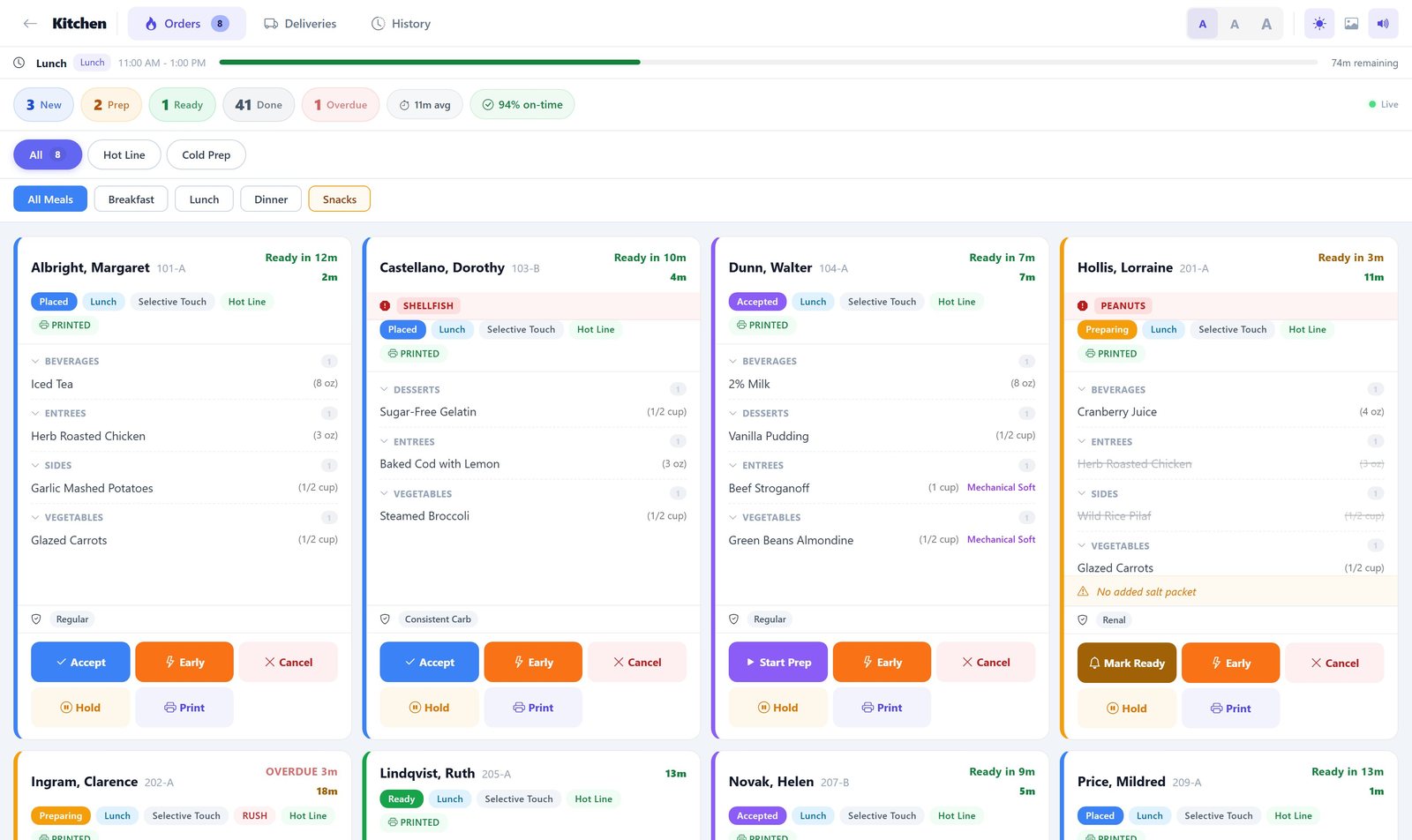
Built for the tray line
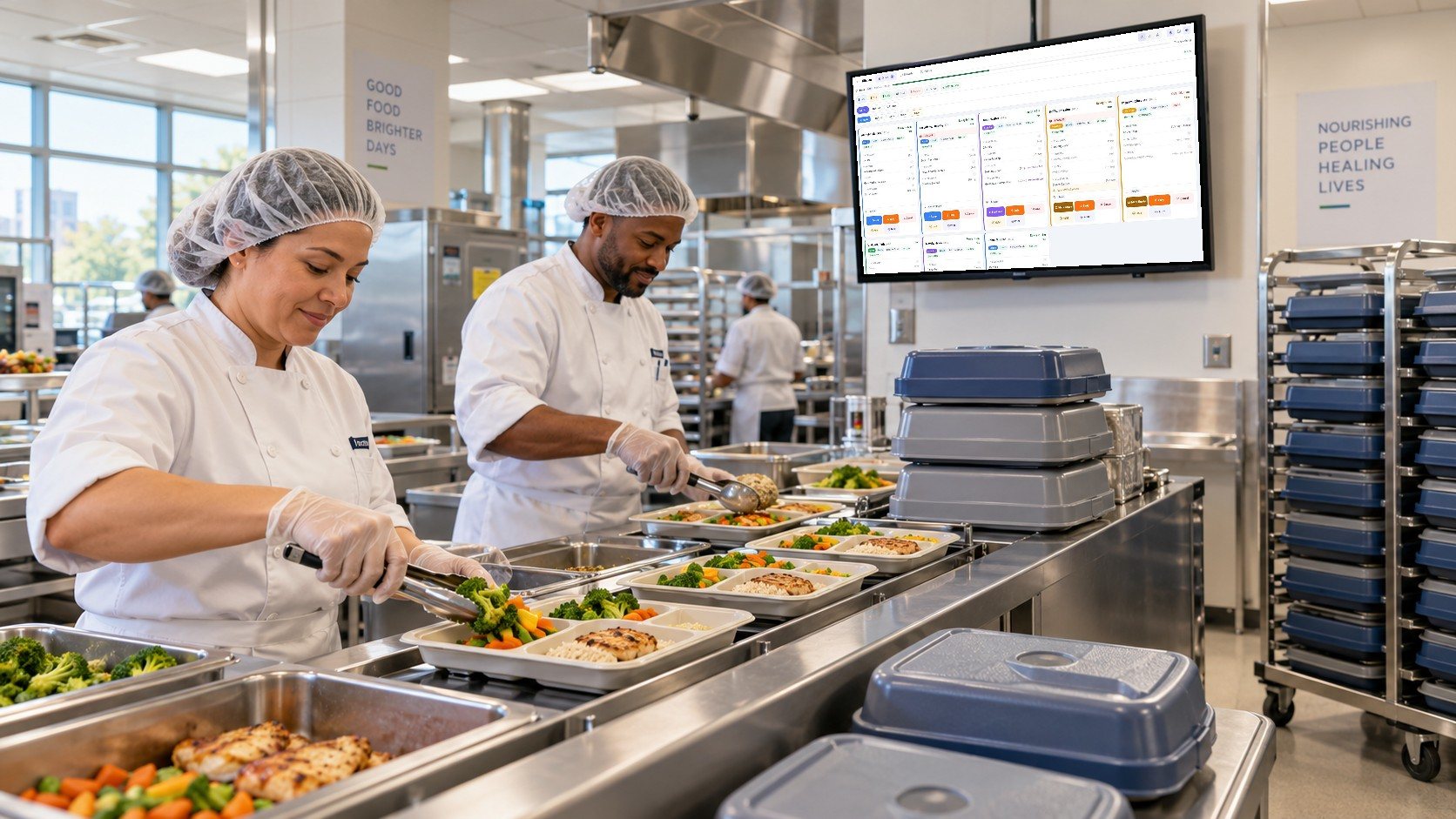
Readable from across a busy kitchen
Mount the kitchen display above the line and the whole team works from the same live board, instead of a stack of paper tickets.
- Large text and a dark mode for bright kitchens
- A chime for new and late orders
- Filter to one station or one meal
The kitchen display, screen by screen
Real screens from Dietech, shown with sample residents and a sample menu.
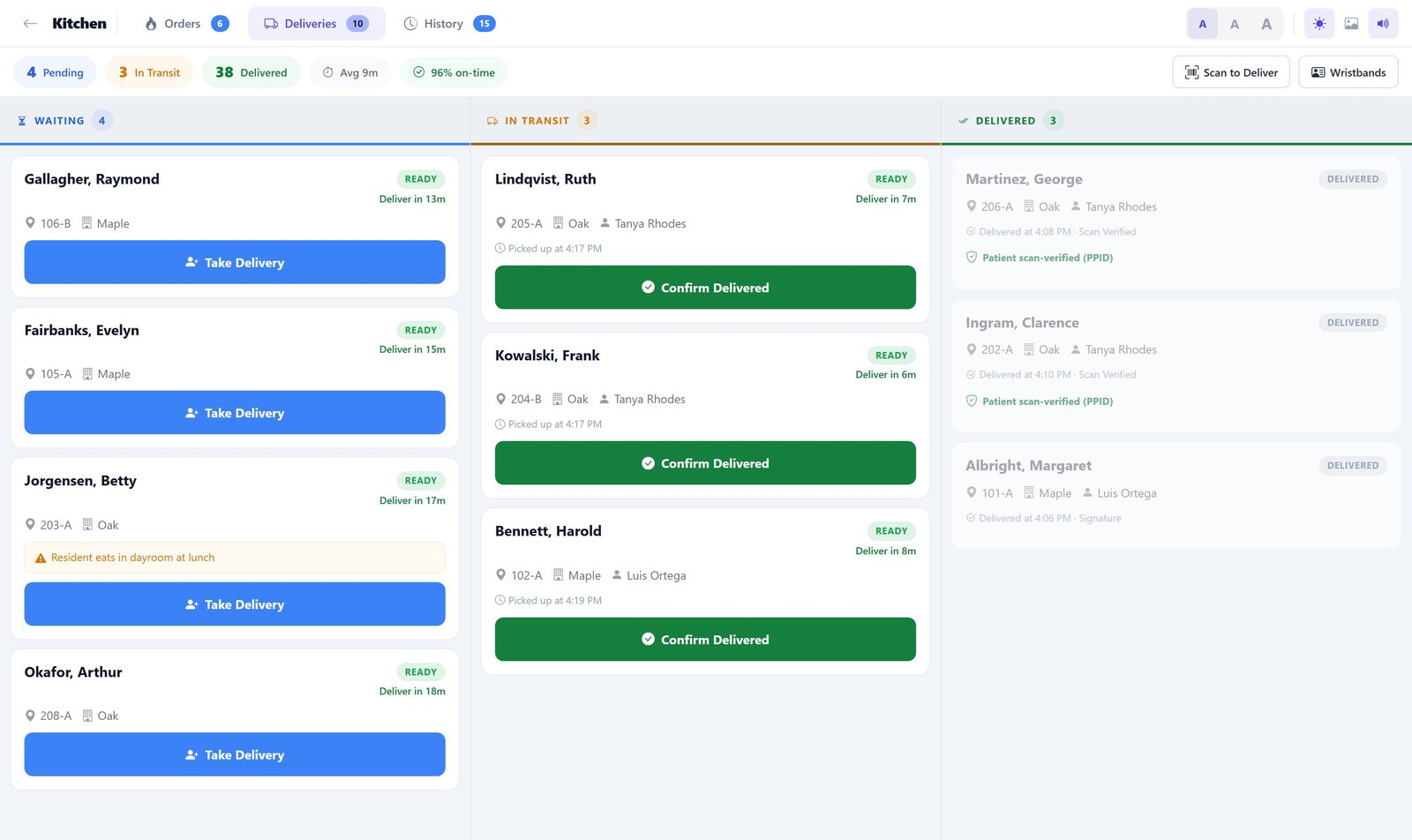
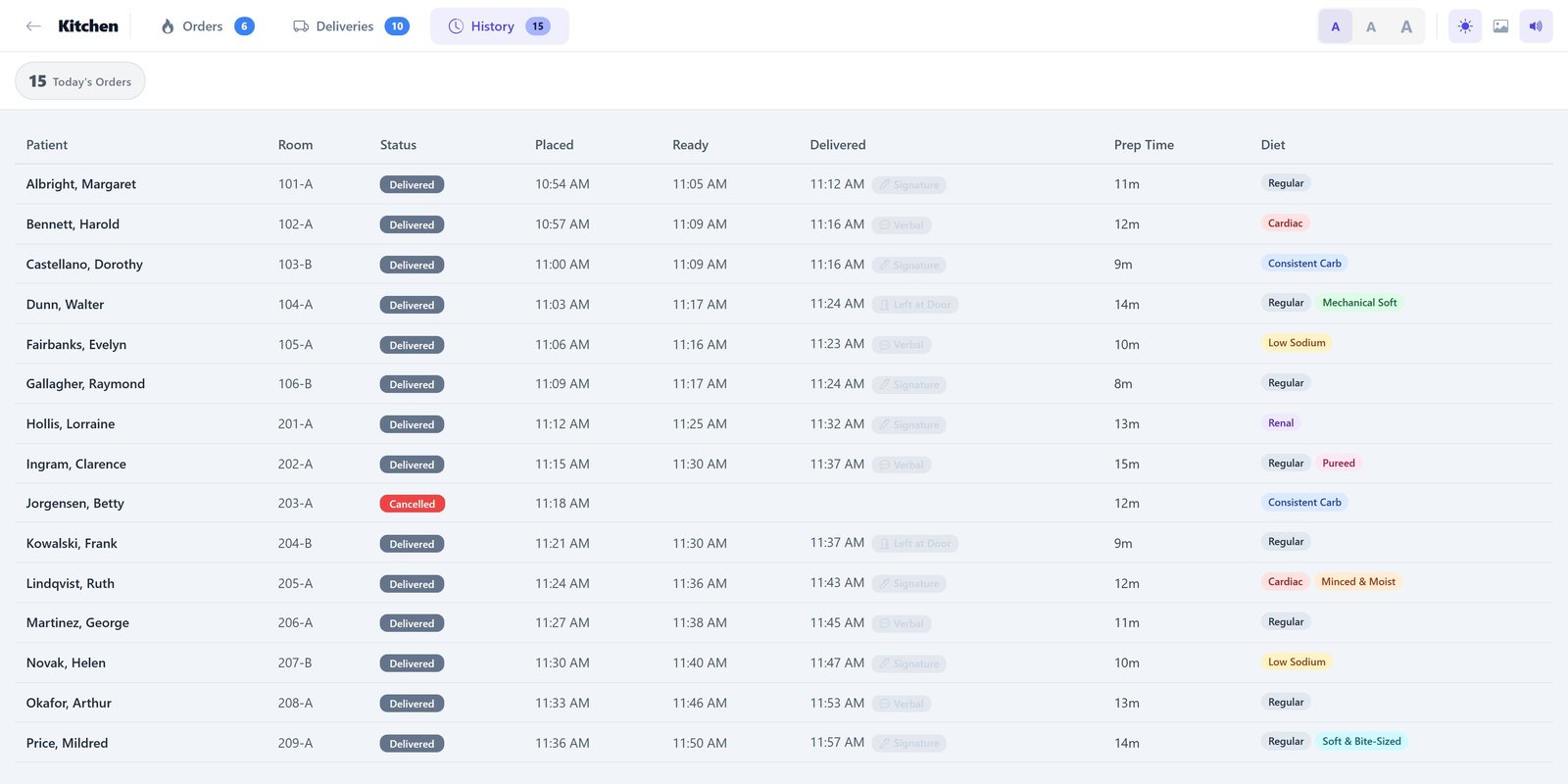
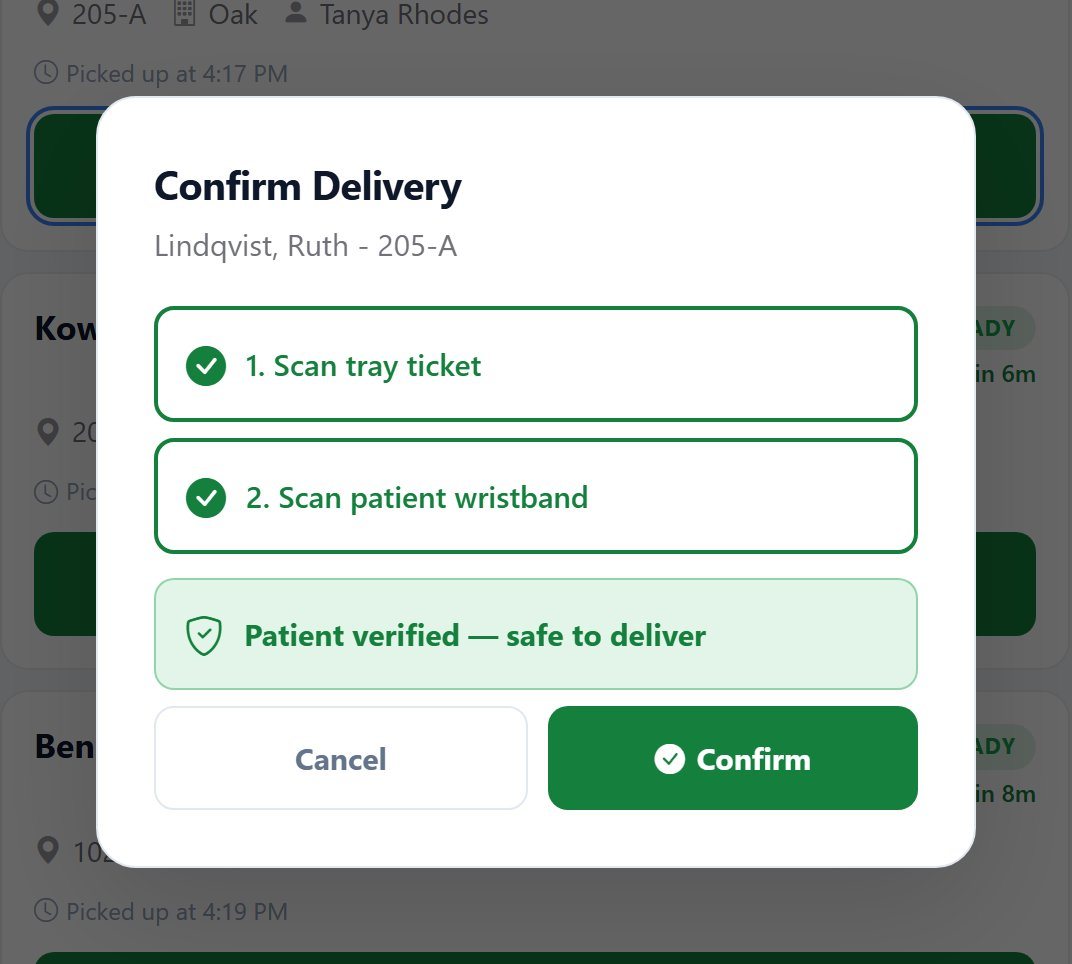
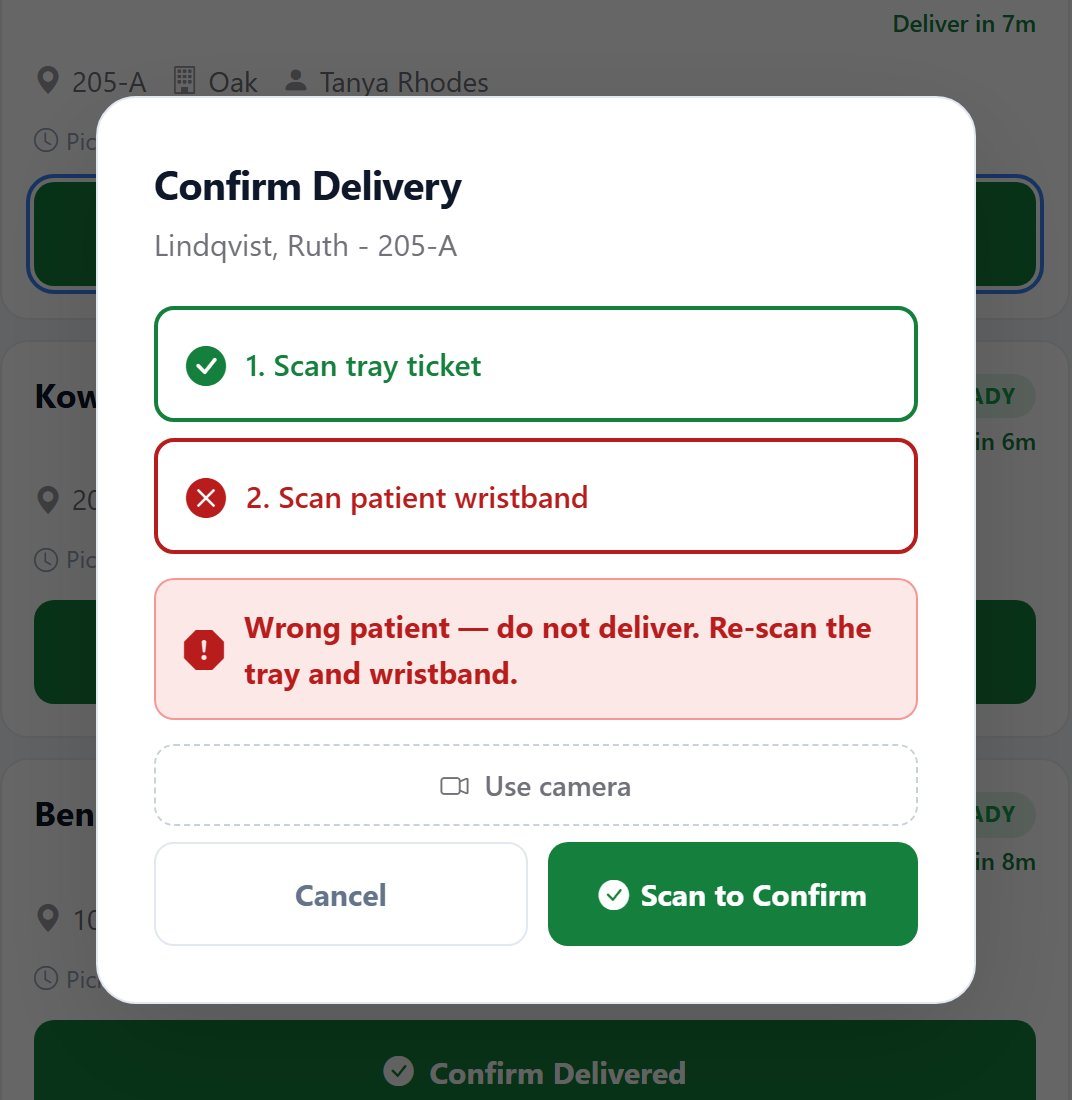
Two scans before a tray is handed over
At the bedside the runner scans the tray ticket and then the patient's wristband. The delivery can only be confirmed when both resolve to the same patient.
How a meal moves through the kitchen
From the moment a diet order lands to the moment a tray is confirmed at the bedside, every step is recorded against the patient rather than against a printed slip of paper.
- 1
Orders reach the line
Diet orders, menu selections, and late changes arrive on the display as they happen. There is no printed ticket to reprint when a diet changes between tray assembly and service.
- 2
The line sees allergens first
Each order card carries the patient's allergens as red chips at the top, above the food. The cook does not have to open a record or match against a separate ticket to know what must not go on the tray.
- 3
Cooks work the service window
Orders are filtered to the meal being served and move through New, Prep, Ready, and Done. A countdown shows when each is due, elapsed time shows how long it has waited, and an on-time percentage tracks the service as a whole.
- 4
The line controls the sequence
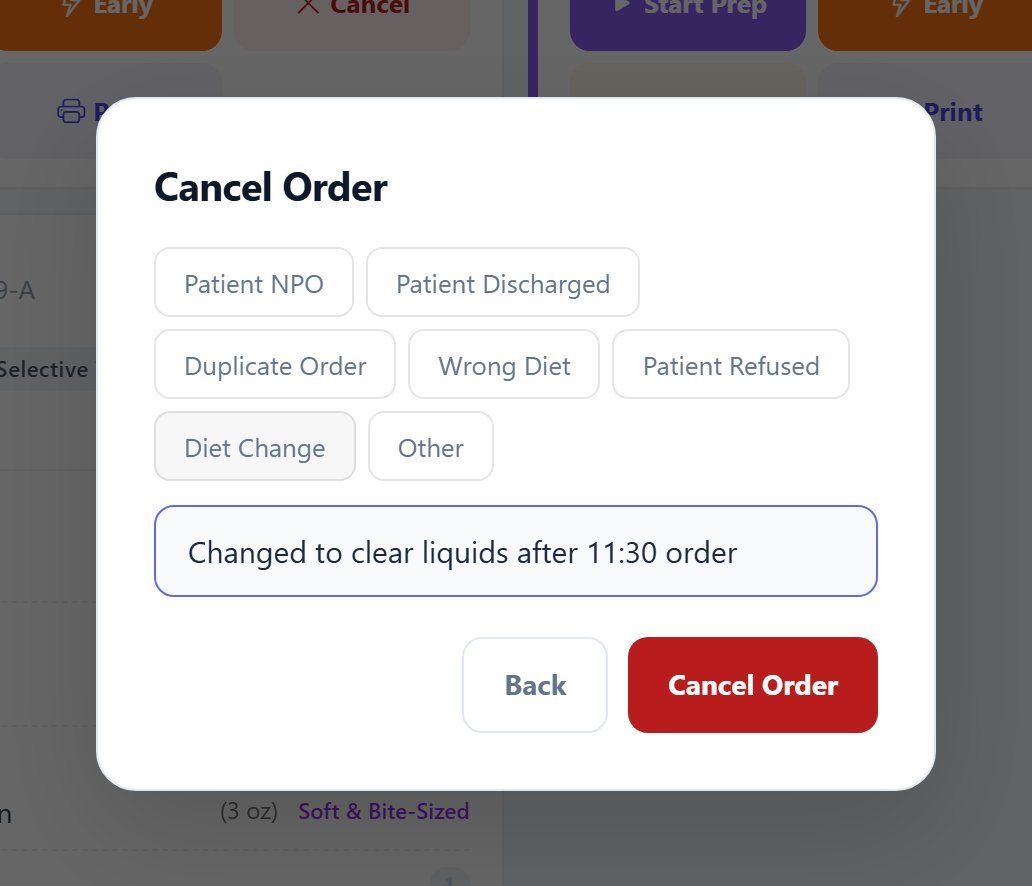
Any order can be accepted, started early, held, cancelled, or printed from its card, so the kitchen sequences work around what is actually happening rather than a fixed queue.
- 5
Trays move to the delivery board
Assembled trays move to a delivery board that tracks each tray by room and unit, with a delivery countdown, so runners can see what has left the kitchen and what is still outstanding.
- 6
Two scans verify the patient
At the bedside the runner scans the patient wristband and the tray ticket. Dietech matches the two and only then records the delivery as scan verified.
- 7
Delivery is recorded
Every tray is confirmed by scan, signature, verbal confirmation, or left at door. The kitchen history keeps the record for audit and survey purposes.
What the kitchen display system does
Capabilities as they are actually implemented, not a category checklist.
| Capability | How it works |
|---|---|
| Order states | Every order moves through New, Prep, Ready, and Done, with a live count against each state and an on-time percentage for the service |
| Live order display | Orders update as they arrive, with a countdown to when each is due and elapsed time since it landed, both ticking continuously rather than at page load |
| Allergens on the card | Each order card carries the patient's allergens as red chips directly on the order, so the line sees them without opening anything or reading a separate ticket |
| Diet and texture badge | The diet order and texture level sit on the card beneath the items, so a regular, easy-to-chew tray is unambiguous at the point of assembly |
| Order provenance | Each card shows where the order came from, whether Selective Touch, bedside, or patient self-order, and whether it is placed or queued |
| Line actions | Accept, start early, hold, cancel, or print any order from the card, so the line controls sequencing rather than working a fixed queue |
| Meal period filters | Filter to breakfast, lunch, dinner, snacks, or all meals, so a station sees only the service it is working |
| Built for a kitchen, not an office | Adjustable text size, a brightness control for glare, and audible alerts, because a kitchen display is read across a room in steam and noise by someone wearing gloves |
| Diet colour coding | Per-diet and per-texture colour lookup so texture-modified and therapeutic trays read at a glance |
| Delivery board | Tray-level tracking after assembly, organised by room and unit, showing what has left the kitchen and what is outstanding |
| Positive patient ID | Two-scan flow: patient wristband barcode is matched against the tray ticket before delivery is accepted |
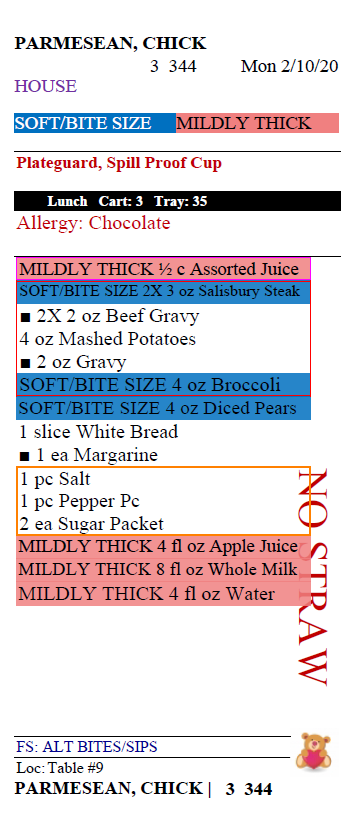
| Wristband encoding | Wristbands carry either the Dietech patient key or the hospital MRN in Code128, the same format the tray ticket already uses |
| Delivery confirmation | Scan verified, signature, verbal, or left at door. Scan verified is applied automatically by the two-scan flow and cannot be selected by hand |
| Kitchen history | A retained record of what was produced, delivered, and confirmed, with the confirmation method attached to each tray |
| Hardware | Runs in a browser on kitchen displays, tablets, and mounted terminals. Camera-based scanning means no dedicated scanner gun is required |
Hospitals and long-term care use it differently
Room-by-room tray delivery
- Delivery board tracks each tray by unit and room
- Two-scan patient ID verification at the bedside
- Wristbands can carry the hospital MRN from the HL7 admission feed
- Late diet changes appear on the line without a reprint
- Confirmation method recorded per tray for audit
Dining room and cart service
- Orders grouped by service window across dining rooms and units
- Diet and texture colour coding for soft, pureed, and thickened diets
- Cart and table assignment printed on the ticket and shown on the board
- Adaptive equipment and never-serve items visible to the line
- Kitchen history retained for state survey documentation
Frequently asked questions
Kitchen display systems, patient identification, and how the two work together.
What is a kitchen display system in a hospital kitchen?
A kitchen display system, or KDS, replaces printed tickets on the tray line with screens that show meal orders as they arrive. In a healthcare kitchen it also has to carry clinical information a restaurant KDS does not: the patient's diet order, texture modification, allergies, and adaptive equipment. Dietech's KDS shows all of that on the order card and colour codes each diet so the line can read it quickly.
How does positive patient identification work on a meal tray?
The runner scans the patient's wristband and then the tray ticket. Dietech decodes both and checks that they resolve to the same patient. If they match, the delivery is recorded as scan verified automatically. If they do not, the tray is not confirmed. Because the check happens at the bedside rather than in the kitchen, it catches trays that were assembled correctly but delivered to the wrong room.
Can staff confirm a delivery without scanning?
Yes. Signature, verbal confirmation, and left at door are available as manual confirmations for situations where scanning is not possible. Scan verified is deliberately not offered as a manual option, so it can only ever be produced by an actual successful two-scan match. That distinction matters when the delivery record is used as evidence.
Does the wristband need to be a special Dietech wristband?
No. The wristband can encode either the Dietech patient key or the hospital's own MRN, so existing wristbands from the EMR-driven admission process can be used where the MRN is available through the HL7 interface. The encoding matches the Code128 format Dietech already uses on tray tickets.
What hardware does the kitchen display system need?
It runs in a browser, so any display with a modern browser works: mounted kitchen screens, tablets on carts, or existing terminals. Scanning uses the device camera, so a separate barcode scanner is not required, though one can be used.
Does the KDS work for nursing homes as well as hospitals?
Yes, though the emphasis differs. Hospitals typically use the delivery board and patient ID scanning for room-by-room tray delivery. Nursing homes more often use the display for dining room service and cart assembly, where trays go out by unit and table rather than by room. Both run on the same system.
How does the KDS handle a diet change made after trays are assembled?
Because the display reads live rather than from a printed ticket, a diet change made in Dietech or received from the EMR appears on the line without a reprint. This is the main practical advantage over paper: late diet changes are the most common cause of an incorrect tray reaching a patient.
Related capabilities
Allergen Management
Allergies, intolerances, and never-serve items enforced at the point of selection and printed on every tray ticket.
Patient Self-Order
Patients choose their own meals from a phone or tablet, within the limits of their diet order.
Dietech for Hospitals
Room service, tray line, diet office, and cafeteria on one system with HL7 and FHIR integration.
See the kitchen display running your own menu
We will set up a demonstration using your diets, your service windows, and your tray ticket layout, so you can judge it against how your kitchen actually runs.