Let Patients Order Their Own Food, Without Letting Them Order Off Their Diet
Dietech's self-order page opens from a secure link on a patient's own phone, a tablet, or a bedside screen, with no app store and no account. The menu is filtered against their diet order, texture modification, and allergy record before it is shown, so every choice in front of them is one they are allowed to have.
How a patient places an order
Six steps, none of which require the patient to have an account, remember a password, or install anything.
- 1
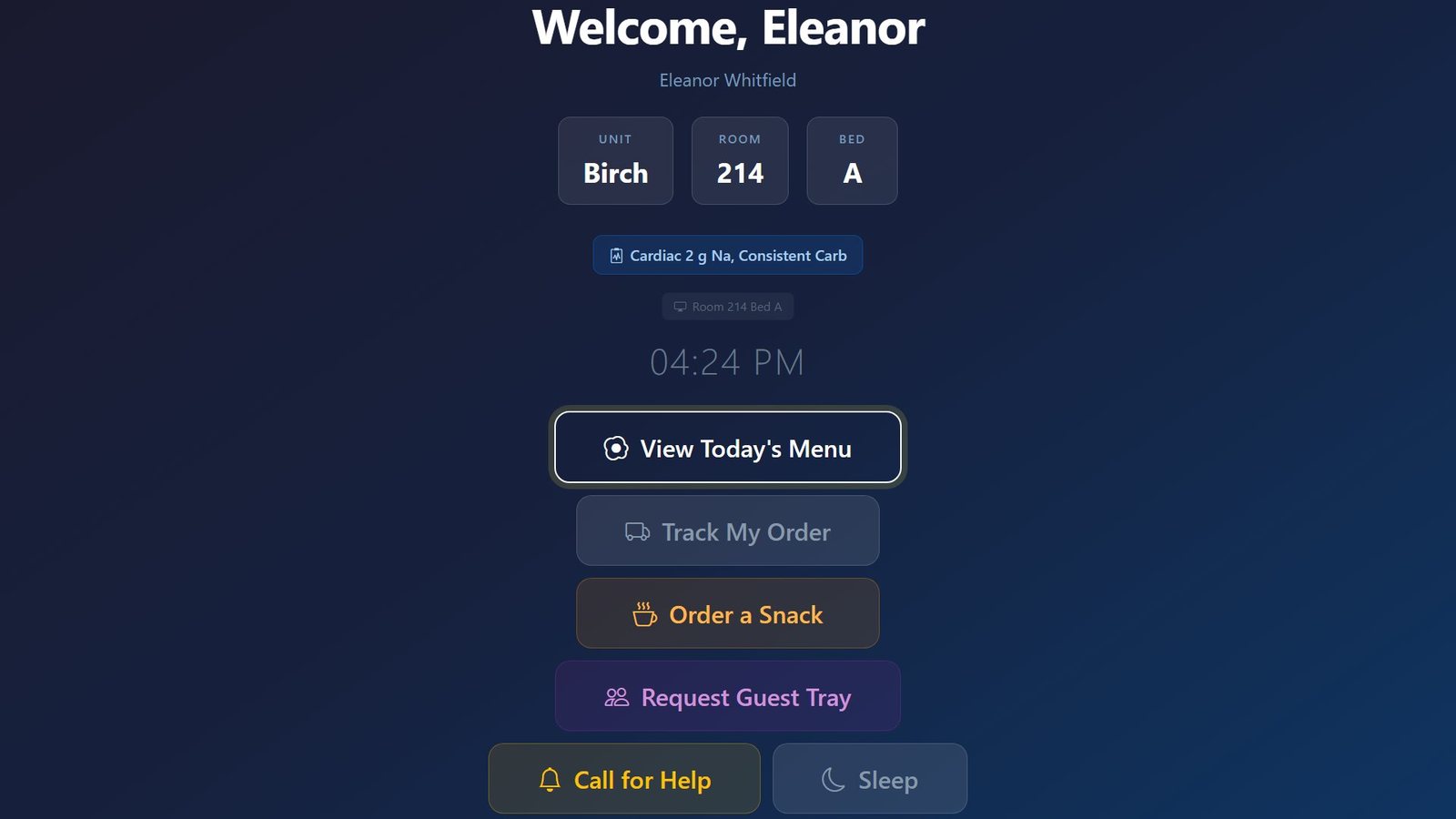
The patient gets a link
Self-order opens from a secure token rather than an account. There is no username to issue, no password to reset, and nothing for a patient to install.
- 2
The session is validated
The token is validated before anything is shown, and a PIN can be required in addition where a facility wants a second factor at the bedside.
- 3
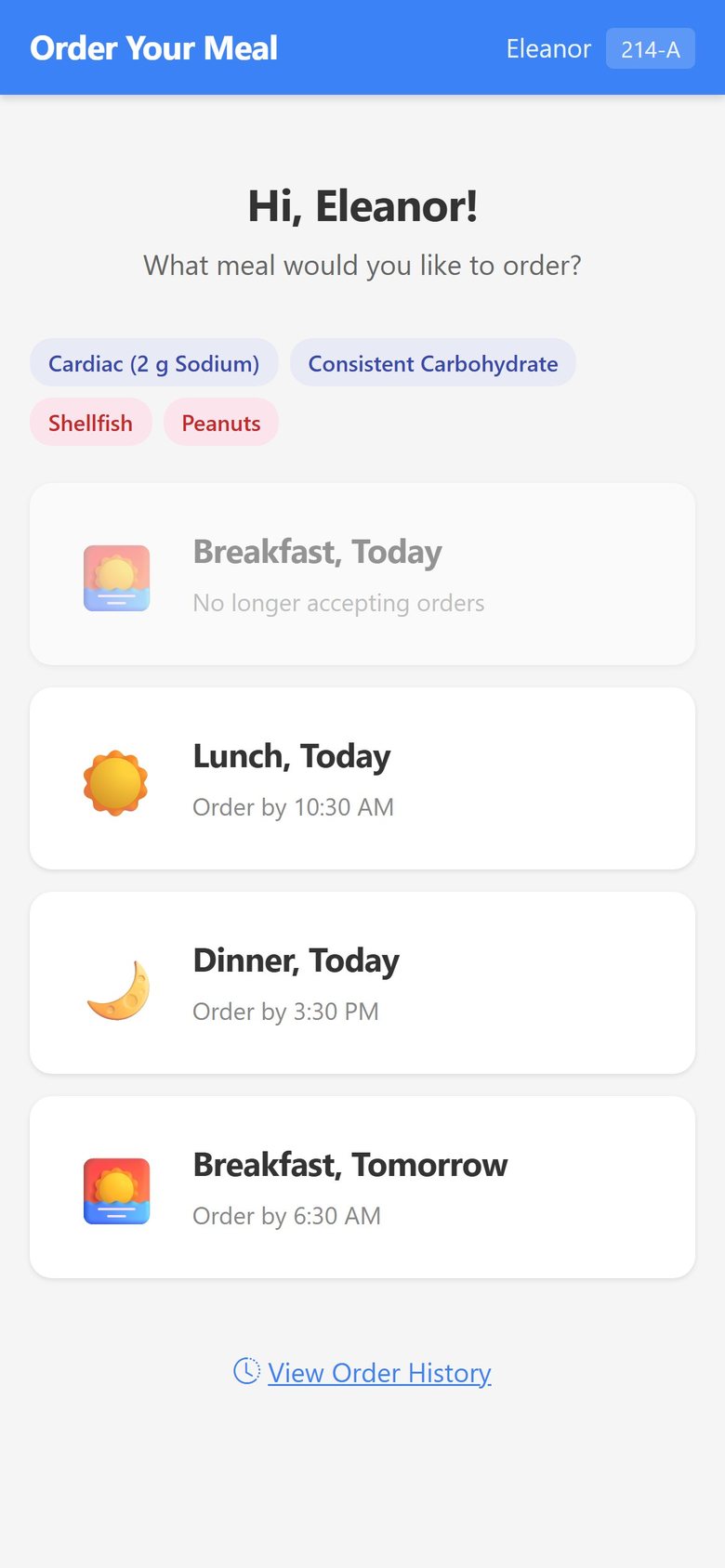
They pick a meal and a day
The patient chooses the mealtime and date they are ordering for, within whatever ordering window the facility allows.
- 4
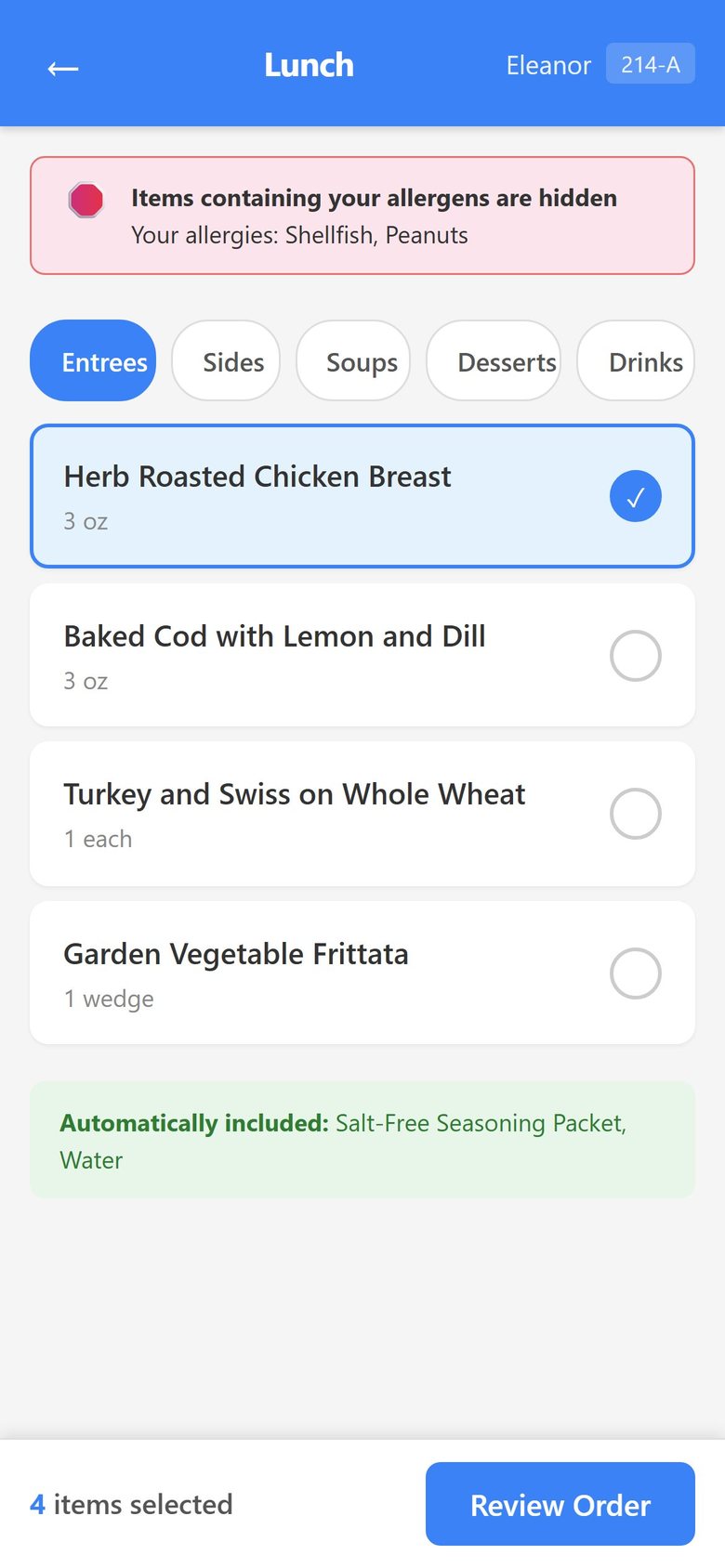
They see only what they may have
The menu is filtered against their diet order, texture modification, and allergy record before it reaches the screen. Items that conflict are not presented as choices they then get told off for making.
- 5
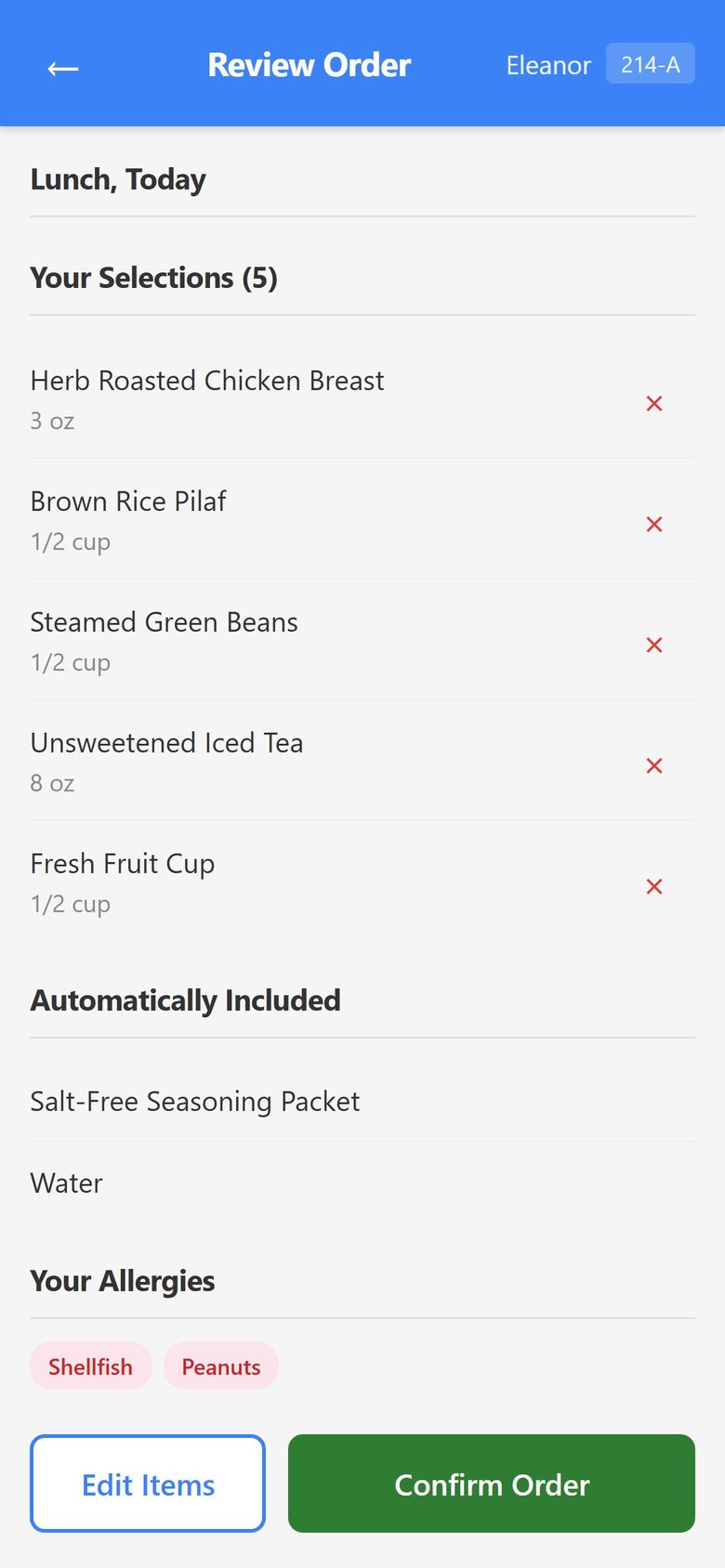
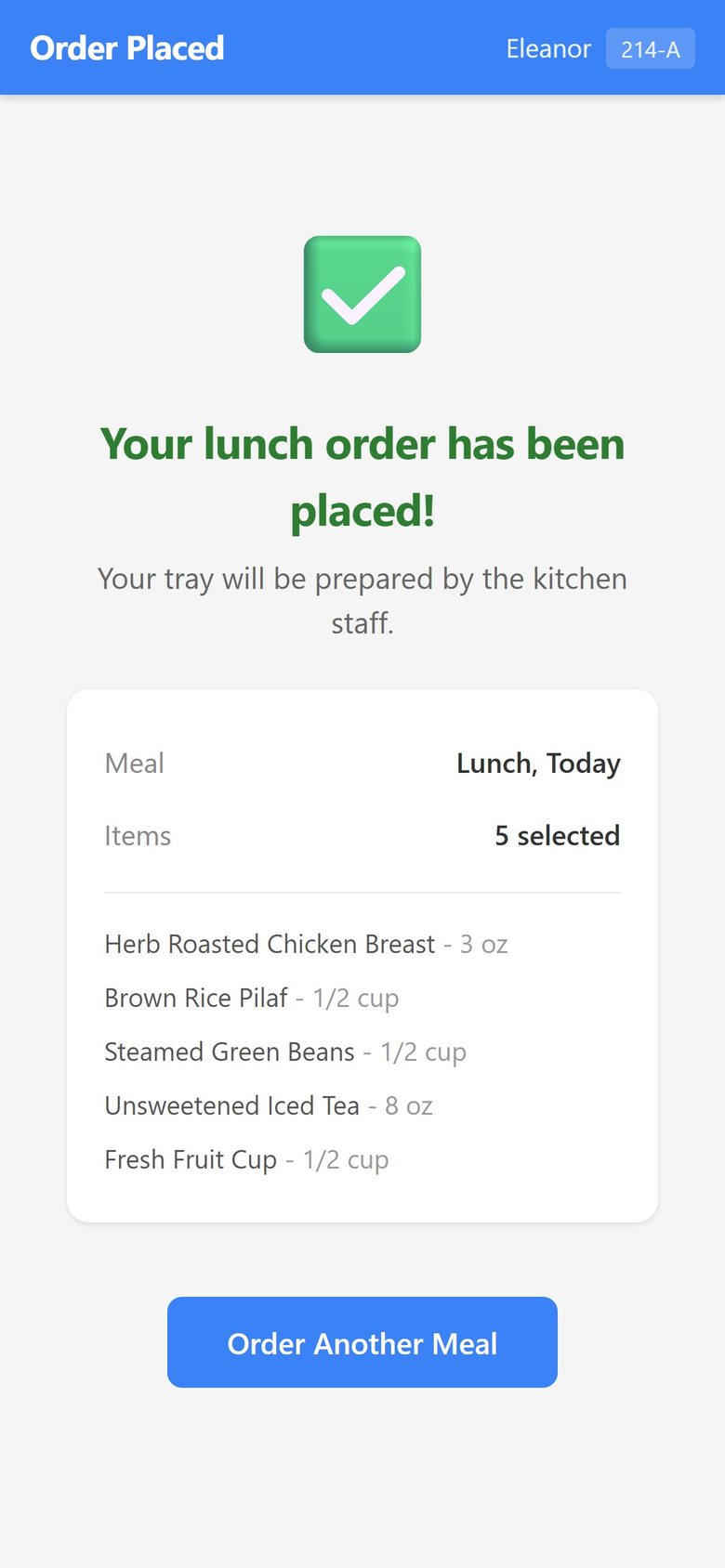
They review and confirm
The order is reviewed in full before submission, with allergy and never-serve warnings raised if anything conflicts.
- 6
The kitchen receives it
The confirmed order flows to production and the tray line like any other order, and the patient can see their own order history.
What the patient sees
Real screens from Dietech on a phone and a bedside screen, shown with a sample patient and a sample menu.
What patient self-order includes
Built as a separate patient-facing application rather than a cut-down view of the staff system.
| Capability | How it works |
|---|---|
| Access | Secure token link. Facility bedside screens can also require a PIN. No app store download, no account creation, no staff-issued credentials |
| Diet-aware menus | Menus are filtered by diet order, texture modification, and allergy record before display |
| Allergy enforcement | Allergy and never-serve checks run before an order can be confirmed; patients cannot order around their own record |
| Meal and date selection | Patient chooses mealtime and service date within the facility's ordering window |
| Order review | Full review step before submission, then a confirmation the patient can keep |
| Order history | Patients can see what they have already ordered, which cuts repeat calls to the diet office |
| Session expiry | Sessions expire rather than staying open indefinitely on a shared or bedside device |
| Separation from the staff website | The patient interface is fully independent of the staff application, with no staff navigation, toolbars, or data reachable from it |
Hospitals and long-term care
Room service ordering
- Patients order from their own phone or a bedside screen
- Short-stay friendly: no install, no account, no onboarding
- Diet orders arriving from the EMR constrain the menu automatically
- Orders flow to the tray line and delivery board like any other
- Reduces inbound calls to the diet office
Resident choice and family involvement
- More independent residents order for themselves
- Family members can order on a resident's behalf
- Guest trays orderable alongside the resident's meal
- Dining room service continues through Selective Touch
- Preferences and dislikes recorded from real ordering behaviour
Frequently asked questions
Patient ordering, diet safety, devices, and how self-order differs from bedside.
Can patients order their own food in the hospital with Dietech?
Yes. Dietech's self-order page lets a patient choose their own meals from their own phone, a tablet, or a bedside screen. The menu they see has already been filtered against their diet order, texture modification, and allergy record, so every option in front of them is one they are permitted to have. Orders go straight to the kitchen and appear on the tray line like any staff-entered order.
Do patients have to download an app?
No. Self-order runs in the browser and opens from a secure token link, so there is nothing to install from an app store and no account for the patient to create. This matters in a hospital, where the average length of stay is too short for an app install and account setup to be worth anyone's time.
How do you stop a patient ordering something against their diet?
Filtering happens before display rather than after selection. The menu is built from the patient's own diet order, texture requirements, and allergy record, so conflicting items are never presented. Allergy and never-serve checks then run again at confirmation as a second layer. A patient cannot order around their own diet order.
Is the patient interface separate from the staff system?
Completely. Self-order is separate from the staff website. It has no staff navigation, no toolbar, and no route into staff data. A patient session is validated on its own token and reaches only that patient's menu and order history.
What is the difference between self-order and bedside ordering?
Self-order is the patient using their own device through a link. Bedside ordering, in eTableServ, is a facility-owned screen at the bedside that is activated as a device, can require a PIN, has a screensaver and inactivity timeout, and supports navigation by TV remote as well as touch. Many facilities run both: the bedside screen for patients who want it in the room, self-order for those who would rather use their own phone.
Can family members order a guest tray?
Guest trays are supported through the bedside ordering screens, so a visitor can order a meal alongside the patient's tray rather than the unit having to arrange it separately.
Does self-order work for nursing home residents too?
Yes, though uptake differs. In long-term care it tends to be used by more independent residents and by family members ordering on a resident's behalf, while dining room service runs through the Selective Touch touchscreen with staff assistance. Both feed the same production and tray line.
Related capabilities
Selective Touch POS
Staff-assisted touchscreen ordering in the dining room, with live nutrient totals and warnings.
Allergen Management
The allergy and never-serve record that constrains every menu a patient sees.
eTableServ Bedside
Facility-owned bedside screens with device activation, PIN, guest trays, and remote-control navigation.
See patient ordering end to end
We will run a real order from the patient's screen through to the tray line, including what happens when they try to choose something their diet order does not allow.