Dietech Runs on iPad, iPhone, Android, and Kiosks, With Nothing to Install From a Store
Dietech runs in the web browser. Staff open it in Safari or Chrome and add it to the home screen, and it opens in its own window without browser bars. The device camera scans wristbands and tray tickets, each device keeps its own facility, and updates arrive from the web without an app store or MDM package.
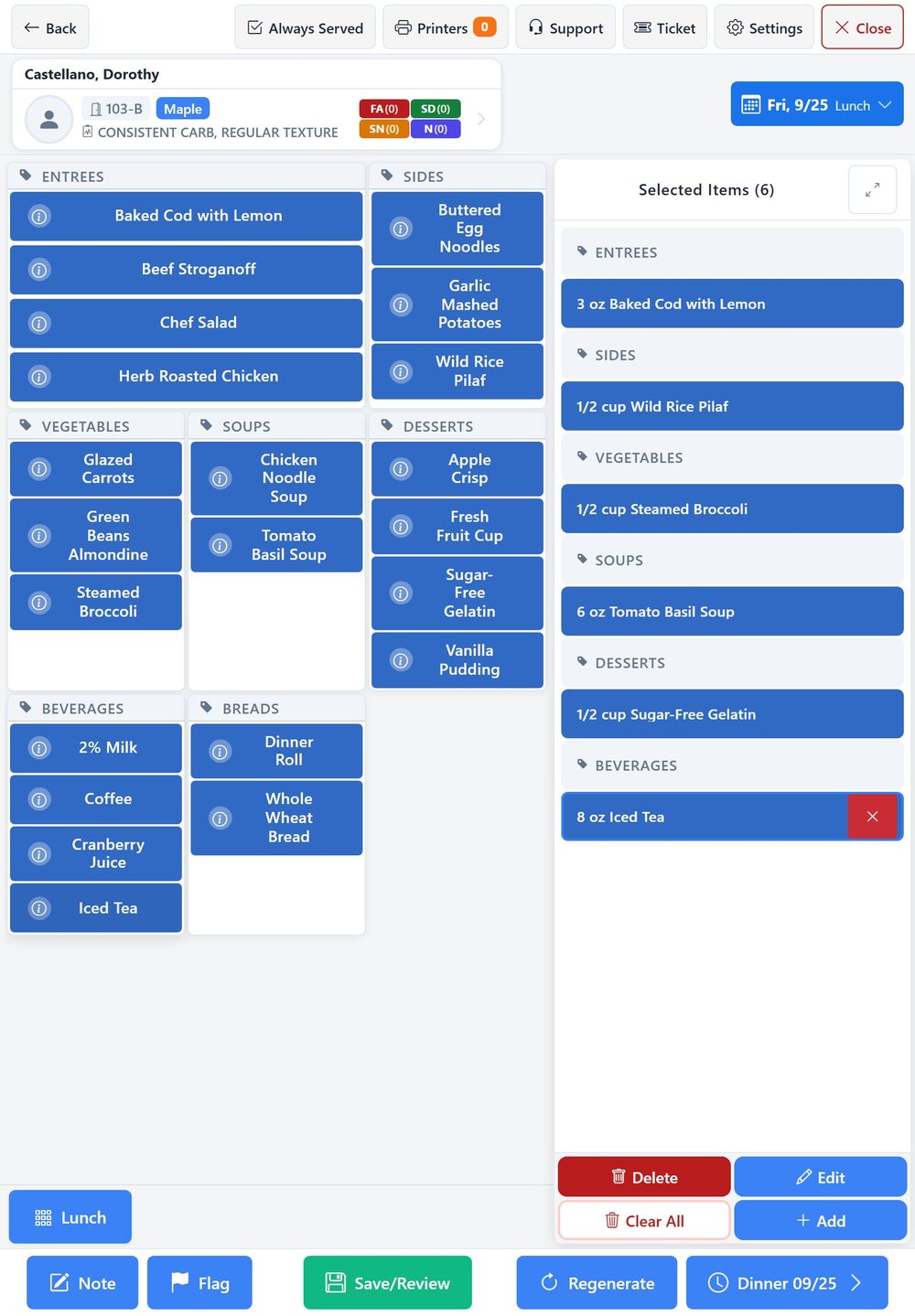
Getting it onto a device
Five steps, none of which involve an app store account, a signing certificate, or a device management console.
- 1
Open it in the browser
Dietech runs in Safari on iOS and iPadOS, Chrome on Android, and any modern browser on Windows. There is nothing to sideload and no store listing to search for.
- 2
Install to the home screen
Add to Home Screen on iOS, or Install on Android and desktop Chrome. Dietech then opens in its own window with no browser bars around it.
- 3
Sign in once per device
Each device keeps its own connection and facility, so a tablet on a unit and a terminal in the kitchen can be pointed at different facilities without interfering with each other.
- 4
Work at the point of care
Take orders at the table, scan wristbands at the bedside, check a tray on the line, or enter weights on the unit, without walking back to a desktop.
- 5
Updates arrive on their own
New versions are picked up from the web with a prompt to reload. There is no app store review queue and no fleet of tablets left three versions behind.
Carry it to the table
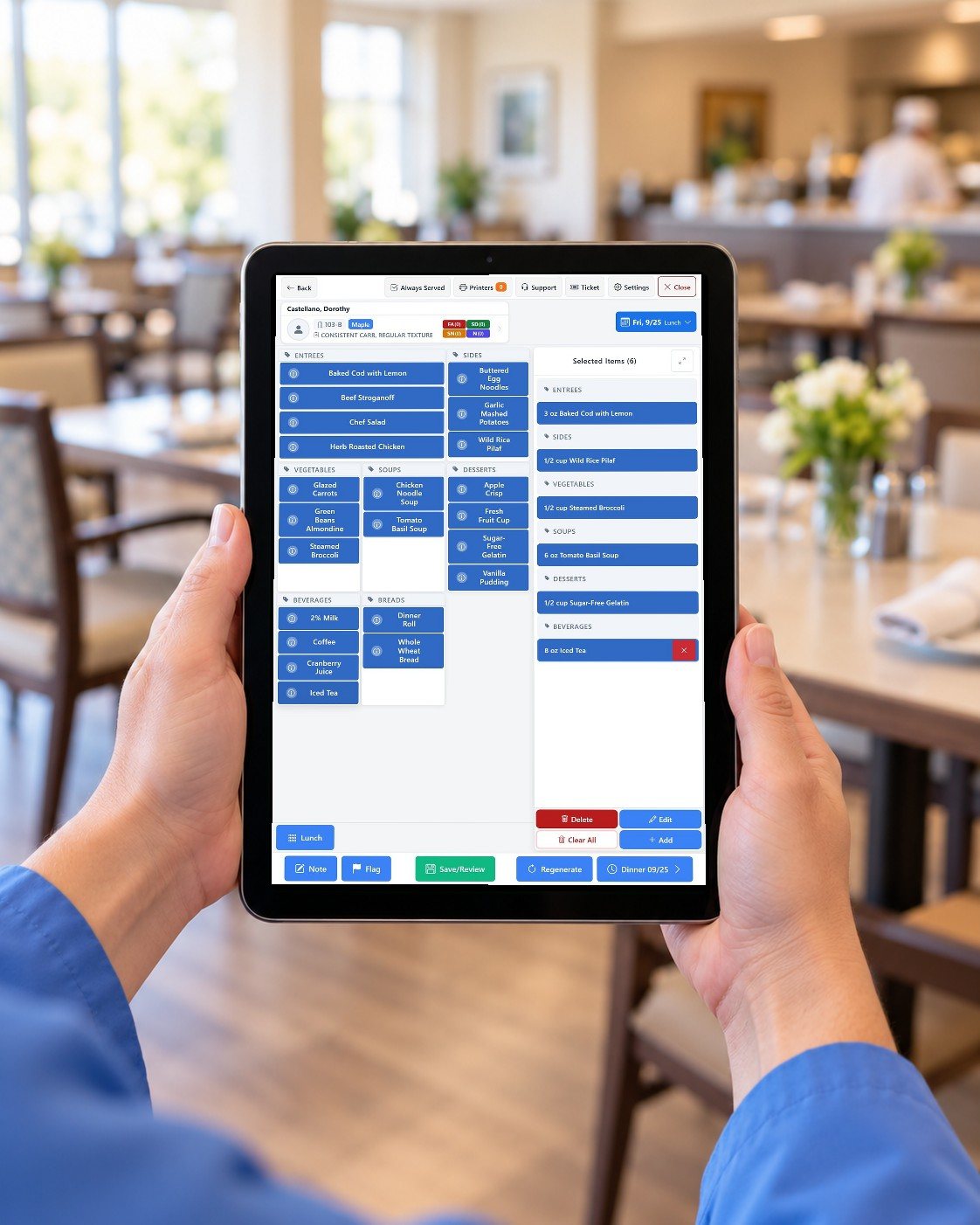
The tablet you already own is the terminal
Selective Touch runs in the browser on an iPad or Android tablet, held upright or sideways. There is nothing to install from an app store and no separate mobile version to keep up to date.
- Works in portrait or landscape
- Sign in once per device
- Updates arrive on their own
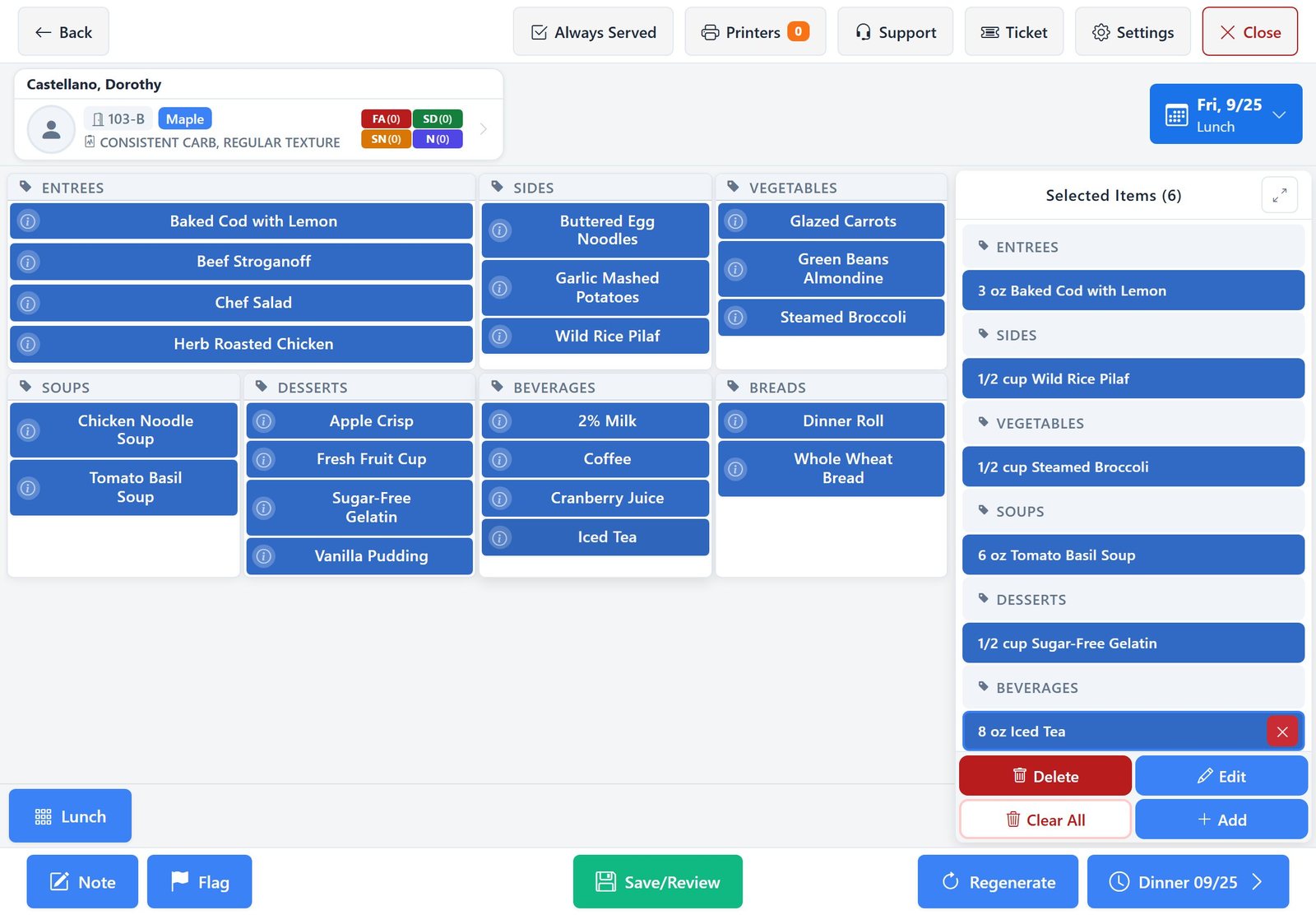
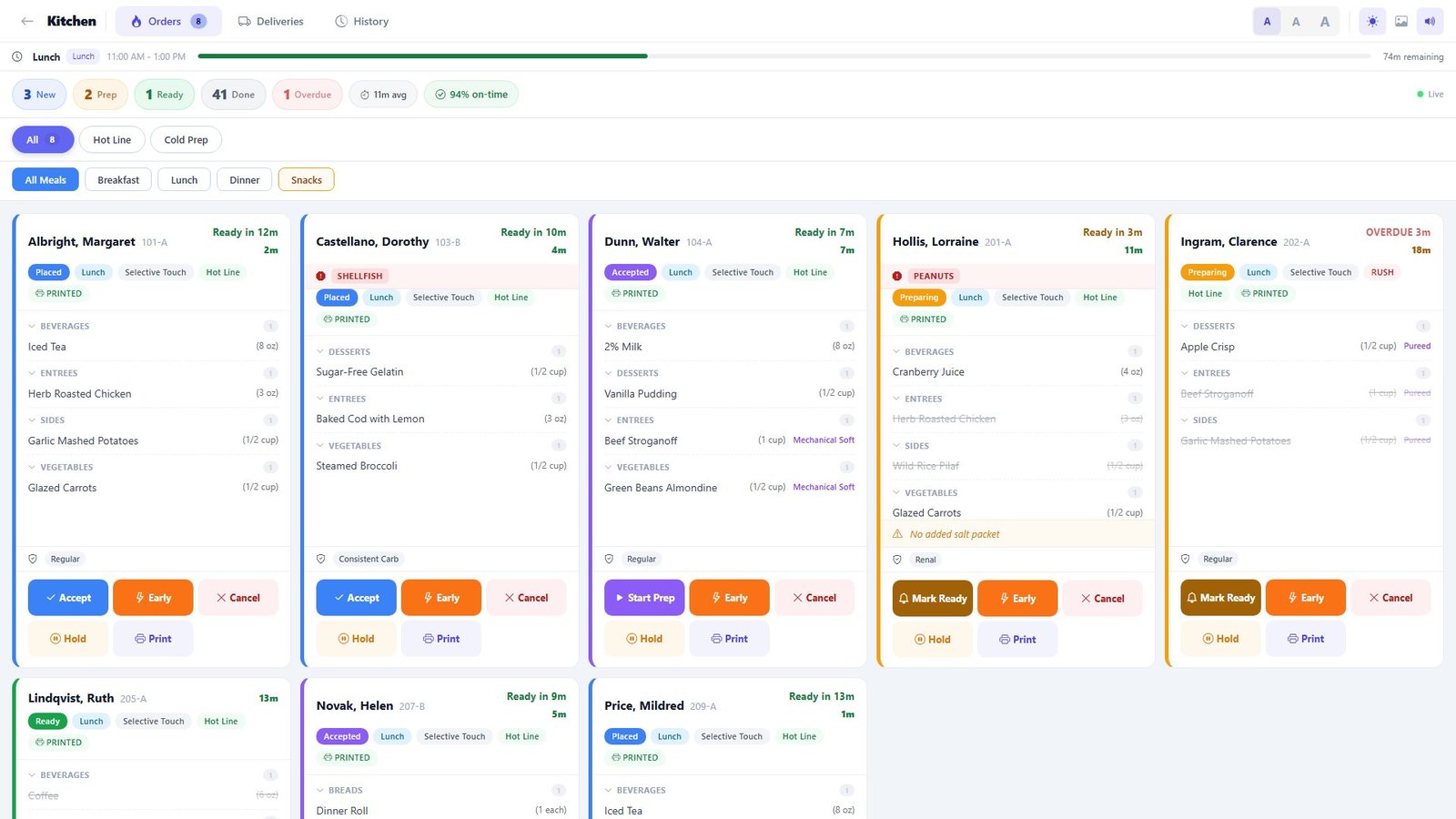
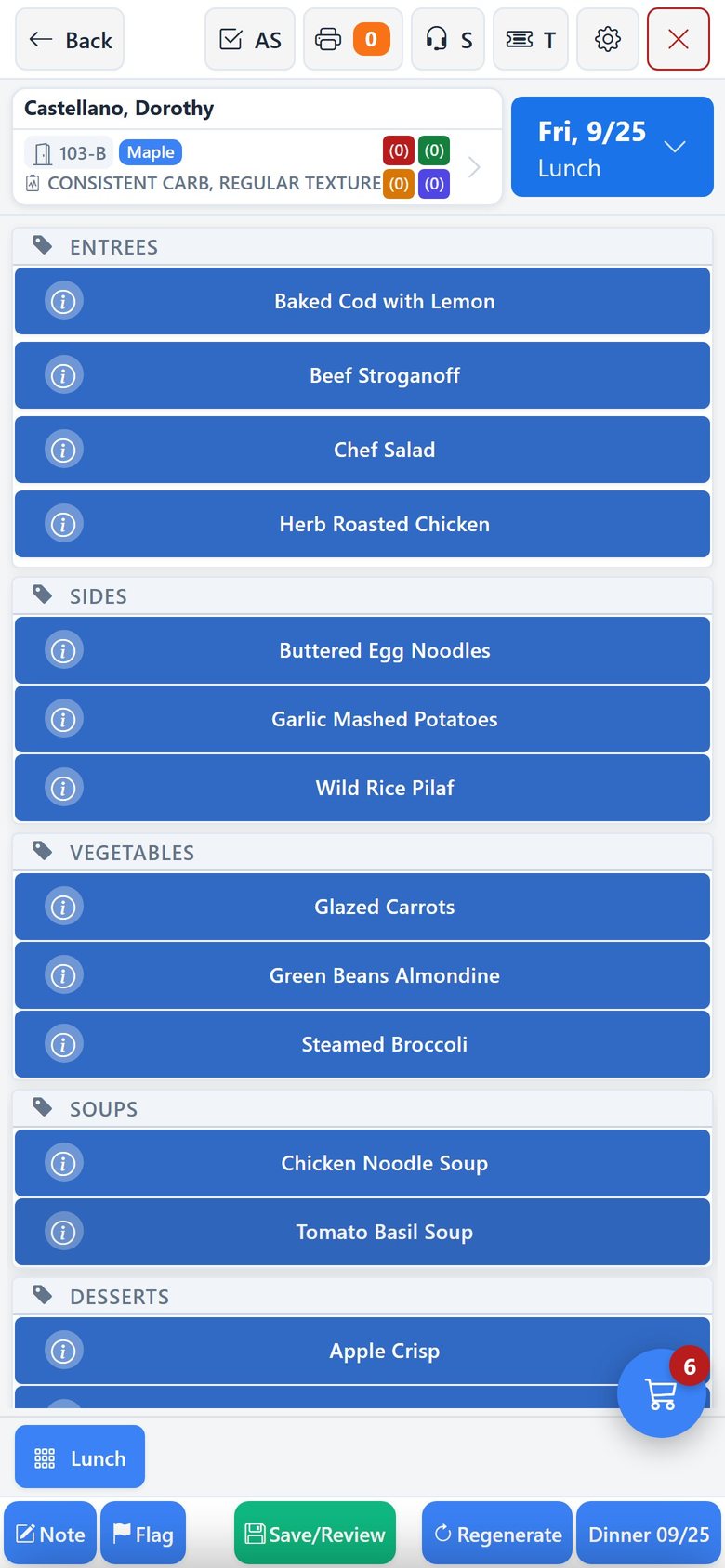
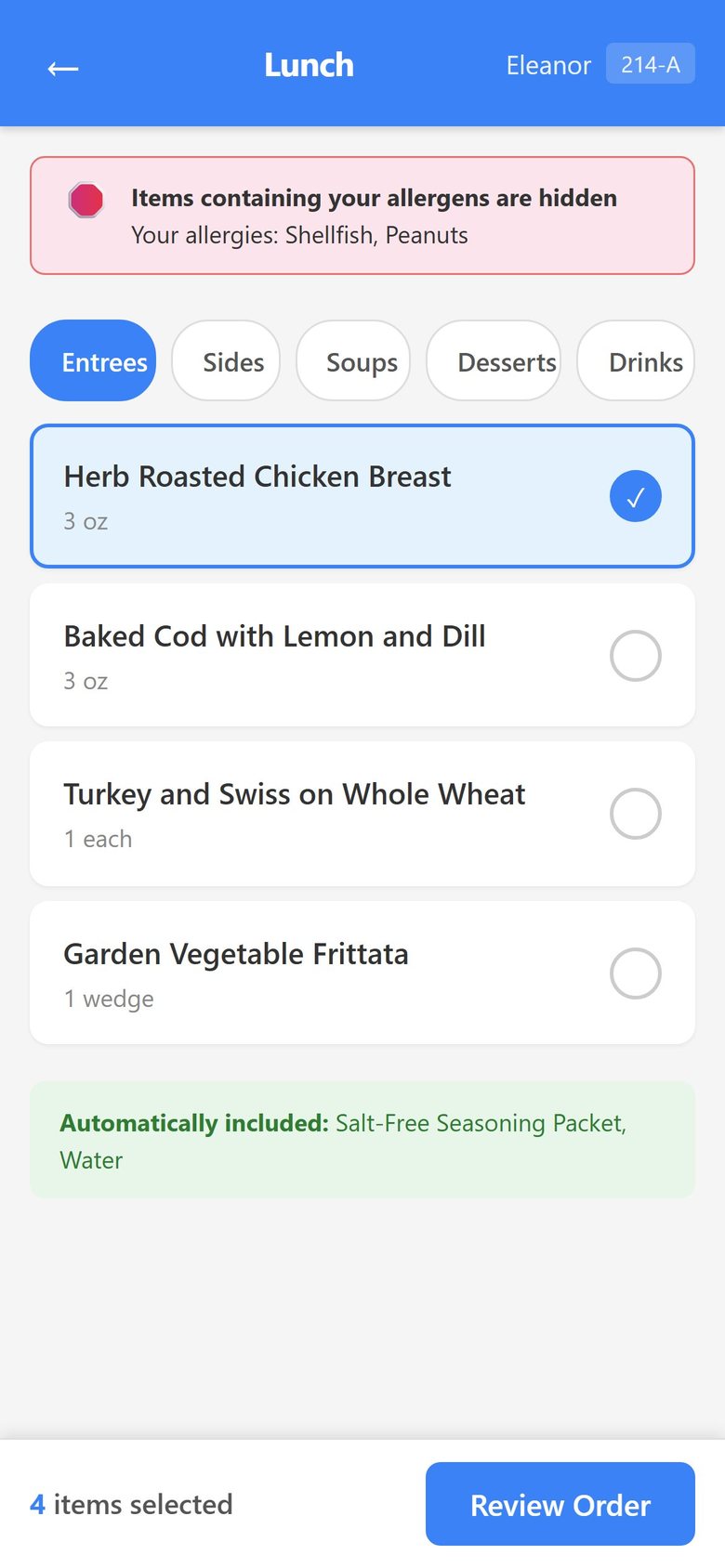
The same screens, sized to the device
Real screens from Dietech on a tablet, a phone, and a kitchen wall screen, shown with sample residents and a sample menu.
Platforms and capabilities
One system on every device, rather than a desktop product with a separate mobile companion. The touch screens, ordering, the kitchen display, and patient self-order, are built to be used standing up.
| Platform / capability | Detail |
|---|---|
| iPhone & iPad | Runs in Safari on iOS and iPadOS and adds to the home screen from the share menu. On a phone, Selective Touch ordering and patient self-order are laid out for the small screen; office work such as menu planning and reports is designed for a tablet or larger |
| Android phones & tablets | Runs in Chrome and installs from the browser prompt or menu |
| Windows tablets & terminals | Runs in Edge and Chrome; installs as a desktop application window |
| Kiosk & mounted screens | Standalone display mode with no browser chrome, suitable for wall-mounted kitchen displays and bedside units |
| Camera scanning | Wristband and tray ticket barcodes are read with the device camera, so a tablet doubles as the scanner |
| Per-device facility | Each browsing context holds its own connection and facility, so corporate and support staff can work two facilities at once |
| Offline assets | Application shell and fonts are cached, so the interface loads reliably on hospital wifi that comes and goes |
| Update model | Updates are delivered from the web and applied on reload, with a prompt rather than a silent swap mid-task |
| No MDM packaging | Nothing to package, sign, or distribute through mobile device management, and no app store developer account involved |
Where the devices actually go
Carts, bedsides, and the diet office
- Tablets on delivery carts for wristband and tray ticket scanning
- Wall-mounted kitchen displays in standalone mode
- Bedside screens with activation, PIN, and remote-control navigation
- Patients ordering on their own phones through a link
- Diet office staff moving between units without a fixed desk
Dining rooms and units
- Touchscreen terminals and tablets for dining room ordering
- Weight and intake entry on the unit rather than back at the office
- Kitchen display on whatever screen the kitchen already has
- One device per dining room without per-seat licensing hardware
- Corporate staff switching between facilities on the same device
Frequently asked questions
Native apps, installation, scanning, and offline behaviour.
Does Dietech have an iOS or Android app?
Dietech runs in the web browser, so it works on iPad and Android tablets, and its touch screens such as Selective Touch and patient self-order work on phones too, without a separate native app. Staff open it in the browser and add it to the home screen, after which it opens in its own window. There is no app store download, no developer account, and no separate mobile build that can fall behind the desktop one.
Why not a native app from the App Store and Google Play?
In healthcare food service the practical costs of native apps outweigh the benefits. Store review delays fixes, device management has to package and push every update, and staff turnover means constantly enrolling new devices. A browser-based system updates the moment you deploy, works on whatever hardware the facility already owns, and needs no enrolment. The trade-off would matter if Dietech needed deep native hardware access, and it does not: camera scanning works from the browser.
Can staff scan wristbands with a tablet camera?
Yes. Barcode scanning uses the device camera, so an iPad or Android tablet acts as the scanner for both patient wristbands and tray tickets. A dedicated scanner can still be used where a facility prefers one, but it is not required to run positive patient identification.
Does it work when the wifi drops?
The application shell and fonts are cached on the device, so the interface loads rather than presenting a blank page when the connection is unstable. Live data still needs a connection. This is a system of record for clinical diet orders, and serving stale diet information offline would be the wrong trade.
Can one device work with two facilities?
Yes. Each browsing context keeps its own connection and facility, which is how corporate users and support staff work two facilities side by side. This was designed for deliberately, because installed apps have no tab strip and would otherwise force a full sign-out and sign-in to switch.
What about bedside screens and wall-mounted kitchen displays?
Both are supported. Dietech runs in standalone display mode with no browser chrome, which is what you want on a mounted kitchen display or a bedside unit. Bedside screens additionally support device activation, PIN entry, screensavers, inactivity timeouts, and navigation with a TV remote for patients who cannot use a touchscreen.
Related capabilities
Try it on your own tablet
Bring whatever hardware you already have: an old iPad, an Android tablet, a kitchen terminal. We will install Dietech on it during the demo.