Tray Tickets the Tray Line Can Read at a Glance
Dietech prints a tray ticket for every resident and meal with the diet order, texture and liquids, allergies, adaptive equipment and the full menu with portions. The new layout puts the name, diet and allergies in large print on every paper type, and Tray Ticket Setup shows a sample ticket as you change each setting.
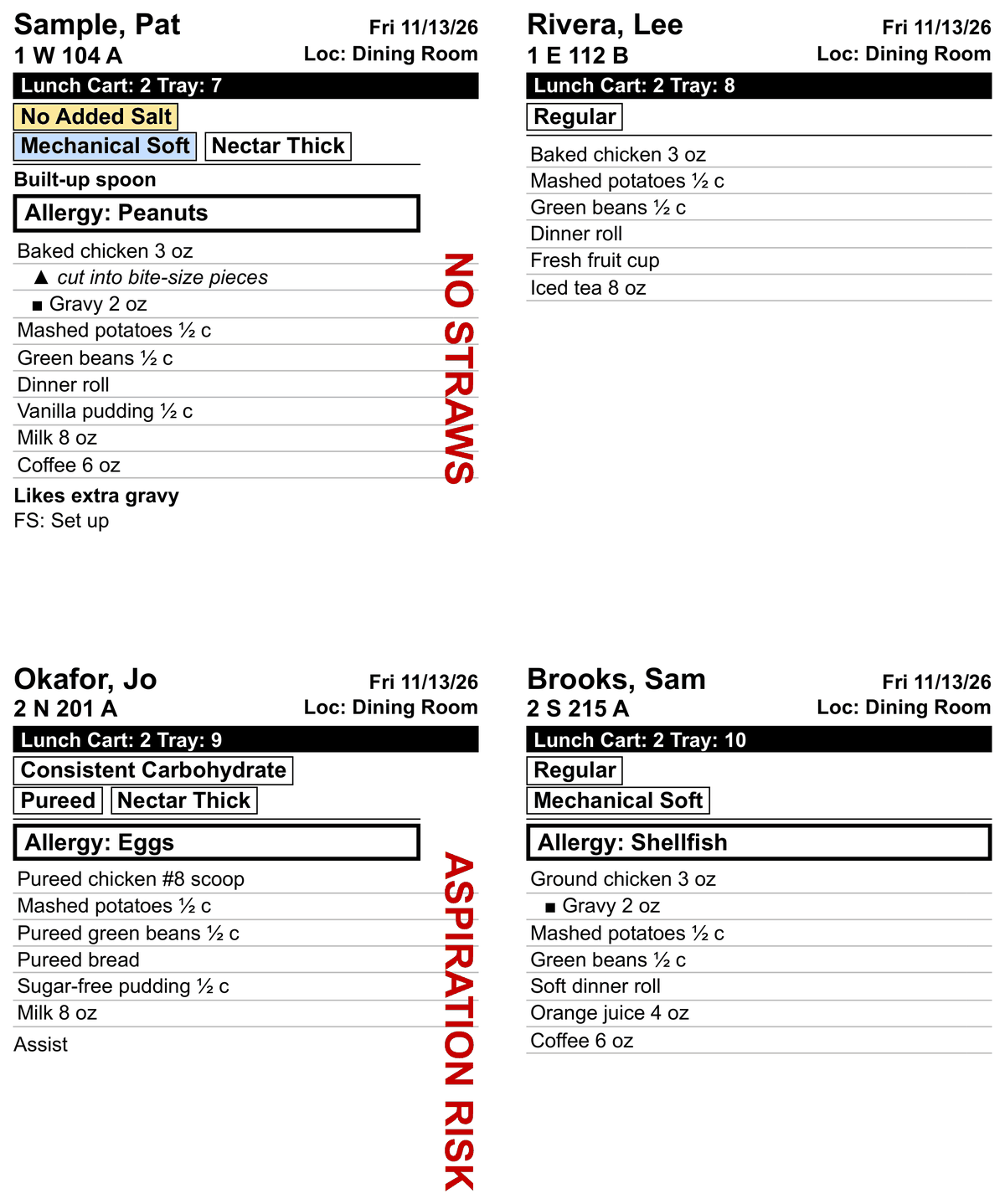
A layout for every paper type
Printed from Dietech with sample residents and a sample lunch menu.
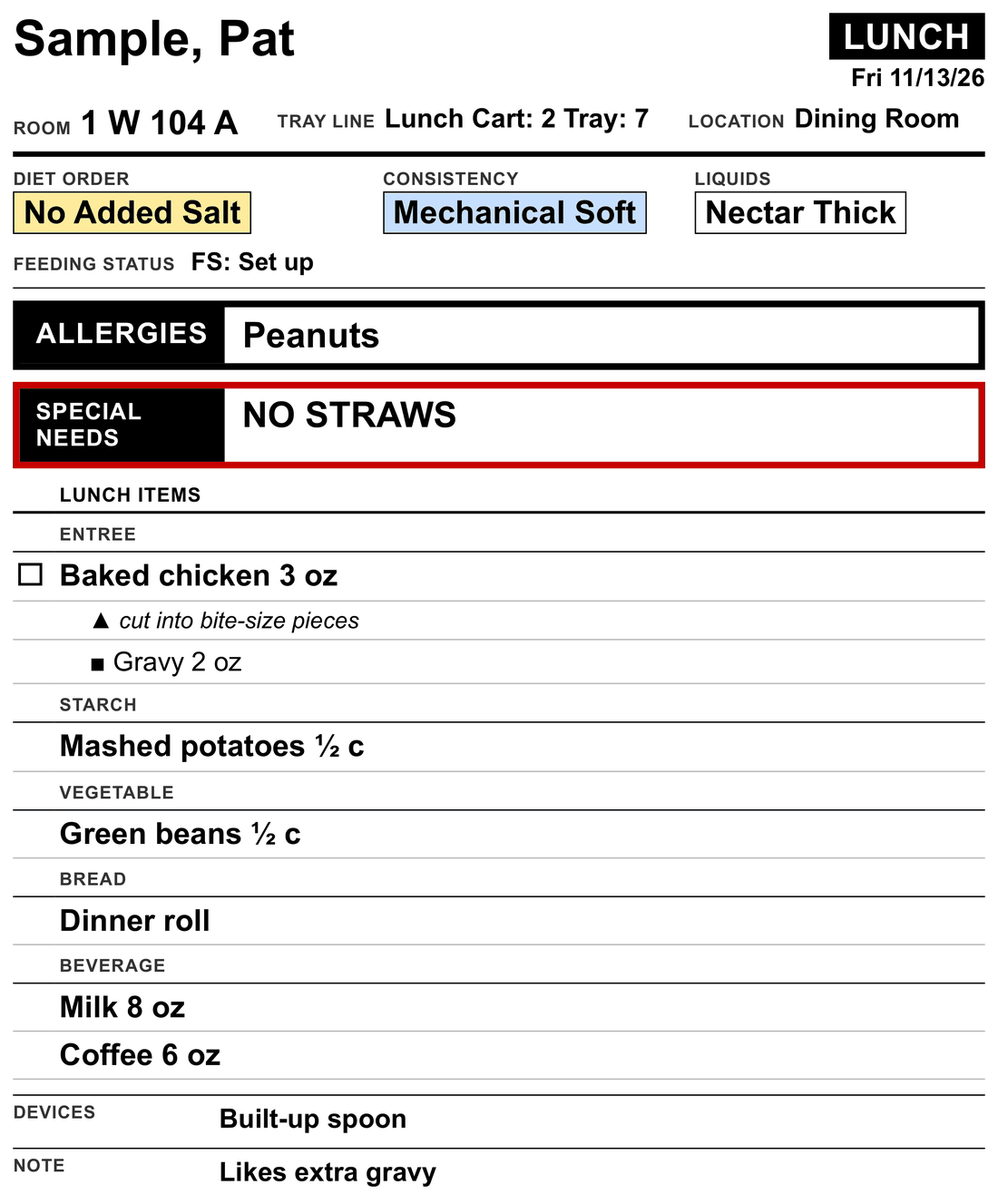
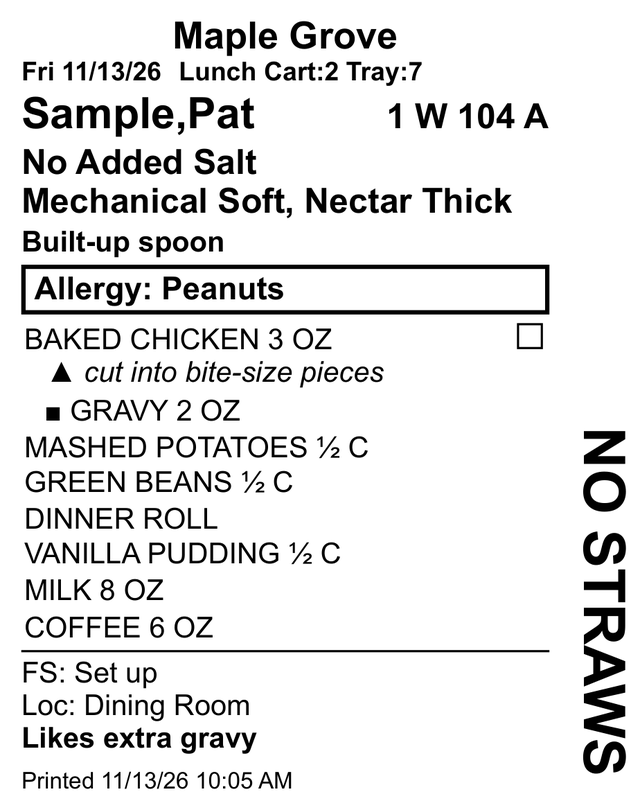
Set up your tickets step by step
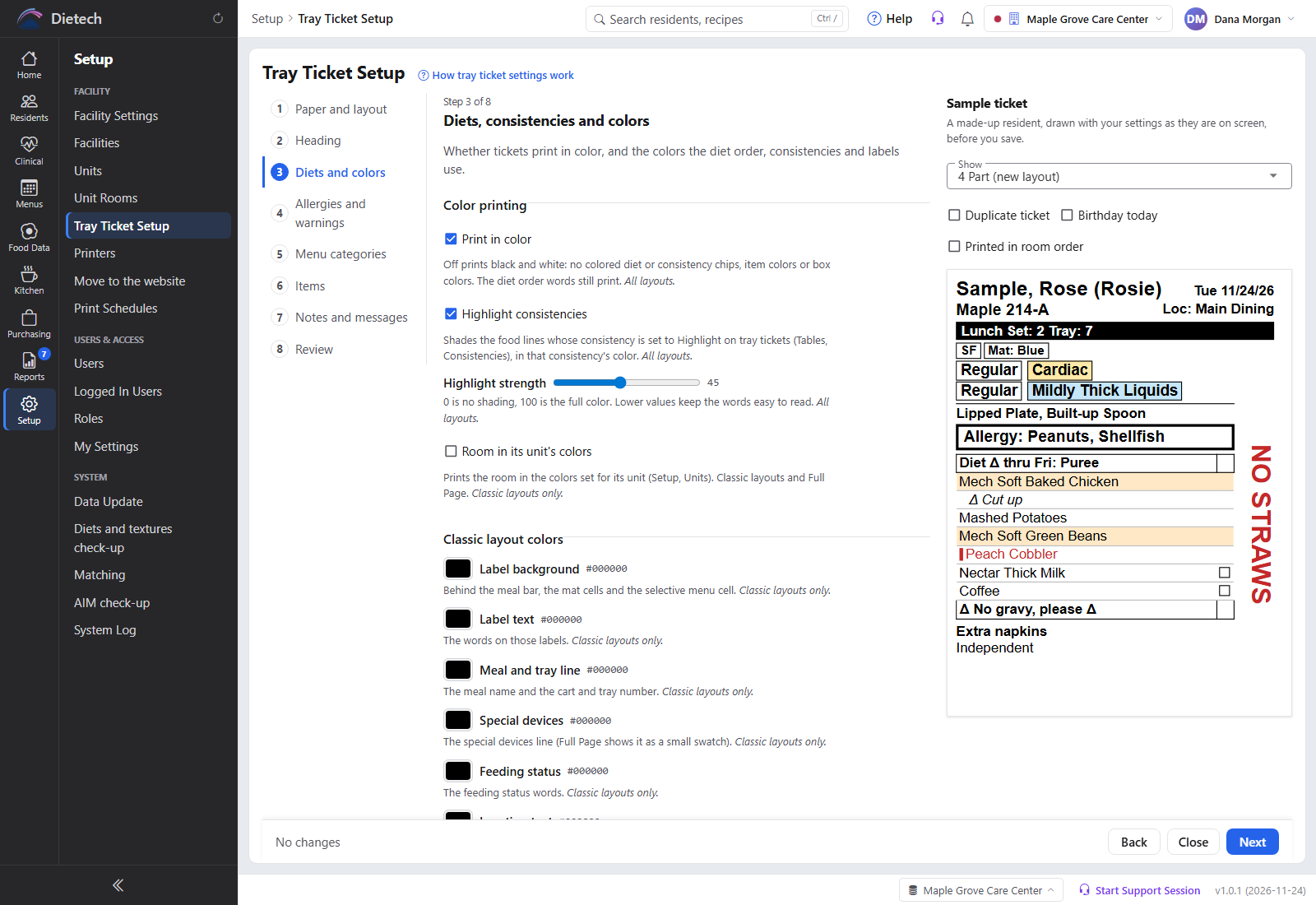
Tray Ticket Setup walks through every setting that changes how a ticket looks, with a sample ticket beside each step that shows the change before you save.
From the diet order to the printed ticket
The ticket is built from the same records the clinical team keeps, so it is never copied by hand.
- 1
The diet order and the menu meet
Each resident's diet order, texture and liquid consistency are applied to the day's menu cycle, along with their selective menu choices, standing orders, likes and dislikes, and the facility's automatic item rules.
- 2
Allergies are checked before anything prints
Never-serve items and allergy groups are applied to the resident's menu, and the allergies print in a heavy box near the top of the ticket where the tray line reads them first.
- 3
Tickets are made for the meal
Tickets are made for a meal, a unit, a cart or a single resident, by hand from Reports or at set times from a schedule, in cart and tray order or room order.
- 4
They print where the kitchen needs them
Finished tickets go to the Print Queue, or straight to the right kitchen printer through the Dietech Print Agent, by unit and report type.
- 5
Changes after printing are caught
When a patient arrives late, a diet changes or someone goes NPO after the meal's tickets have printed, Dietech can print a change ticket for just that tray.
What tray tickets do
Capabilities as they are implemented in Dietech today.
| Capability | How it works |
|---|---|
| Paper types | 1 Part roll, 3 Part, 3 Part Landscape, 4 Part, 3, 4 and 6 Part basic tickets, Zebra 4x4 labels, and a Full Page ticket in large print for the kitchen |
| New layout | A cleaner, larger-print layout for every paper type: the name on one line, the diet order and textures as boxed chips, allergies in a heavy box, and the items in clear rows. The classic layout stays available |
| Large message | A warning such as NO STRAWS or ASPIRATION RISK prints in large red letters down the side of the ticket, in a bar under the allergies, or both |
| Diet and texture colors | Diets, consistencies and labels can print in their own colors, with food lines shaded in the consistency's color at a strength you choose |
| What the ticket carries | Diet order, texture and liquids, allergies, adaptive equipment, feeding assistance, item notes, resident notes, cart and tray number, room and dining location |
| Tray Ticket Setup | Eight steps (paper and layout, heading, diets and colors, allergies and warnings, menu categories, items, notes and messages, review) with a sample ticket beside each step |
| Safety prompts | A change that would hide allergies, the diet order or the large message asks you to confirm before it is saved |
| Tray Ticket Visualizer | Shows one resident's ticket on screen for any date and meal, including a temporary menu or a nourishment time, and prints it |
| Scheduled tickets | Tickets and the production tally can be made at set times for each meal, ready in the Print Queue when the kitchen arrives |
| Printing | From any browser to the Print Queue, or to kitchen printers through the Dietech Print Agent with a rule per unit and report |
| Reprints | Past Tray Tickets reprints an earlier meal's tickets as they were made |
| Change tickets | Prints just the trays that changed after the meal printed, each marked UPDATED, NEW, HOLD TRAY, CANCEL TRAY or MOVED |
Hospitals and long-term care print differently
Tray line and room service
- Tickets by unit and room for each tray line pass
- Change tickets for late arrivals, diet changes, NPO and discharges
- The ticket barcode is scanned against the wristband at the bedside
- Full Page tickets for the kitchen in large print
Dining rooms and carts
- Cart and tray numbers and the dining location on every ticket
- Likes, dislikes and adaptive equipment where the server sees them
- Texture and liquid colors for soft, pureed and thickened diets
- Scheduled tickets ready before the morning shift
Frequently asked questions
Tray tickets, layouts and printing.
What is a tray ticket?
A tray ticket is the printed slip that travels on each meal tray. It tells the tray line and the person delivering the tray who the meal is for, where they are, what diet, texture and liquid consistency they are on, what they are allergic to, and exactly what goes on the tray. In Dietech the ticket is built from the resident's diet order and the menu cycle, so it changes when the diet order changes.
Do we have to switch to the new layout?
No. The classic layouts remain the default and keep printing exactly as before. The new layout is chosen per paper type, so a facility can try it on one kind of ticket, compare, and switch when it is ready.
Can we change how our tickets look without calling support?
Yes. Tray Ticket Setup walks through every setting that changes how a ticket looks, with a sample ticket beside each step that shows your change before you save. Changes that would hide allergies, the diet order or the large message ask you to confirm first.
What paper and printers does it work with?
Dietech prints to standard office and kitchen printers, roll printers for 1 Part tickets, and Zebra label printers for 4x4 labels. The Dietech Print Agent sends each report to the right printer automatically, so the tray line does not have to print by hand.
What happens when a diet changes after the tickets print?
With change tickets turned on, Dietech prints a new ticket for just that patient, marked with what changed and which ticket it replaces. An NPO prints a Hold Tray slip and a discharge prints a Cancel Tray slip, so the old tray is pulled. See the change tickets page for how it works.
Related capabilities
Change Tickets
Late arrivals, diet changes, NPO and discharges after the meal's tickets have printed.
Production Tally
How many of each item to make, in each size and texture, from the same diet orders.
Allergen Management
Allergies and never-serve items enforced from the diet order through to the tray ticket.
See your own tray tickets in the new layout
We will print your diets, textures and menu on the paper you use today, in the classic and new layouts side by side.